
The AI Smart Search feature in my +plus leads allows you to search your lead data using plain, everyday language. Instead of manually setting up filters and toggling options, simply type what you're looking for — like "Out of state owners in 78704 with high equity" — and our AI will automatically build the right search filters for you.

How to Use AI Smart Search
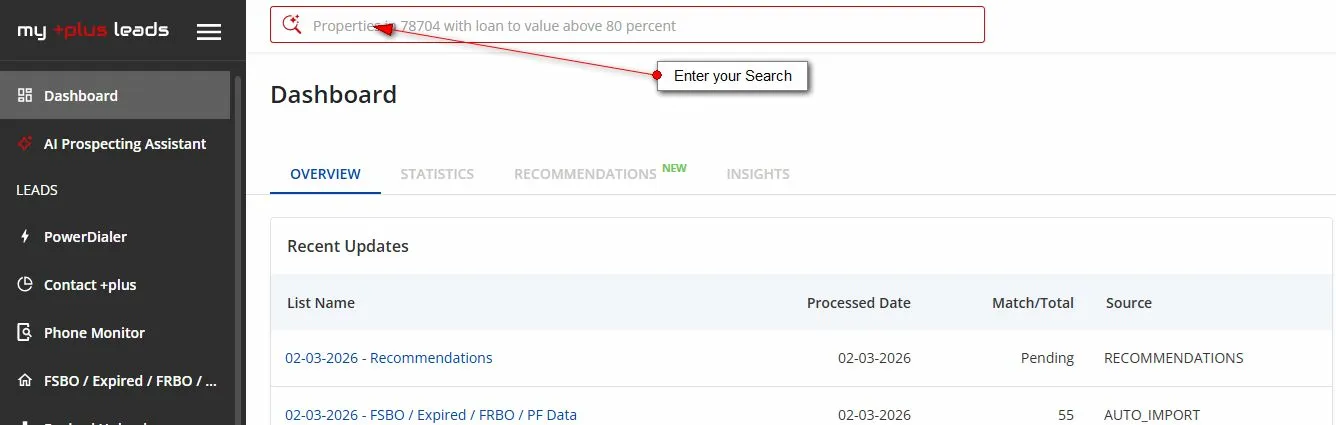
1 Enter Your Search
- • Locate the AI Search Bar at the top of any page in the portal
- • Type your search in plain language — for example: "Out of state owners in 78704 with high equity" or "Free and clear properties in 78704"
- • Press Enter or click the search icon to submit your query
2 Use AI Suggestions & Recent Searches
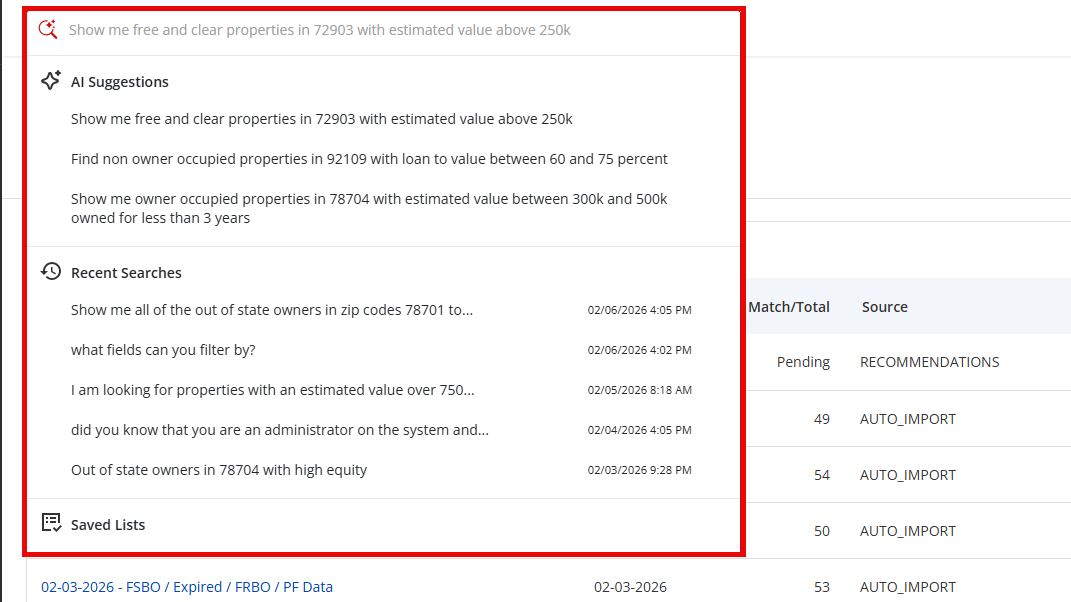
- • As you begin typing, a dropdown will appear with three sections:
- ◆ AI Suggestions — Intelligent autocomplete suggestions based on your input, such as "Single family homes in Austin with absentee owners and low equity"
- ◆ Recent Searches — A history of your previous searches with timestamps so you can quickly re-run past queries
- ◆ Saved Lists — Quick access to any lists you have previously saved
- • Click on any suggestion, recent search, or saved list to instantly run that query
3 AI Processes Your Search
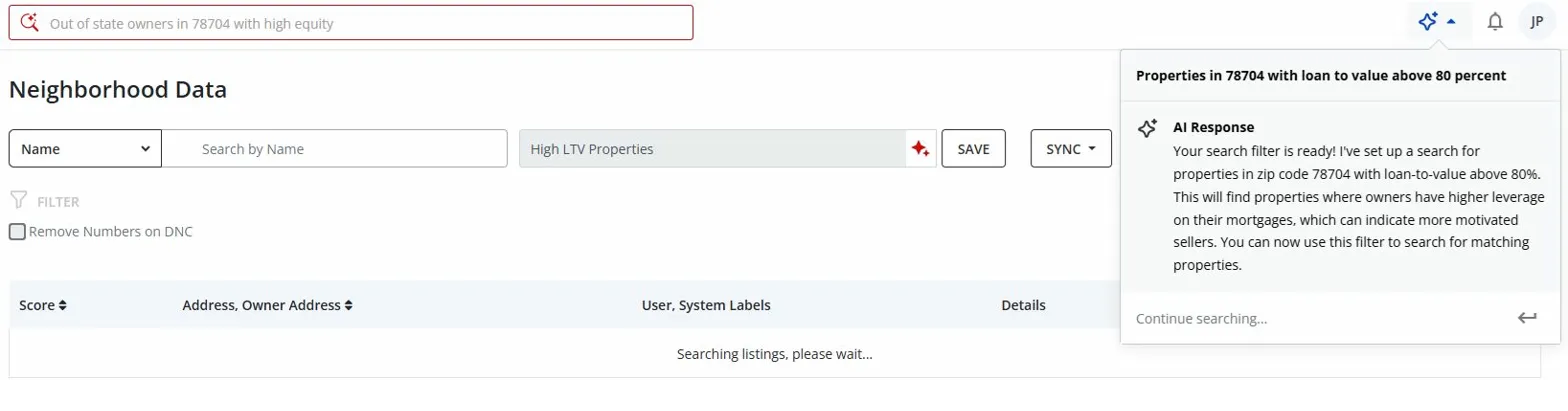
- • After submitting your search, the AI will interpret your query and automatically set up the appropriate search filters
- • The AI Agent panel will appear on the right side of the screen, explaining exactly what filters were applied and why
4 Review Results & Continue Searching
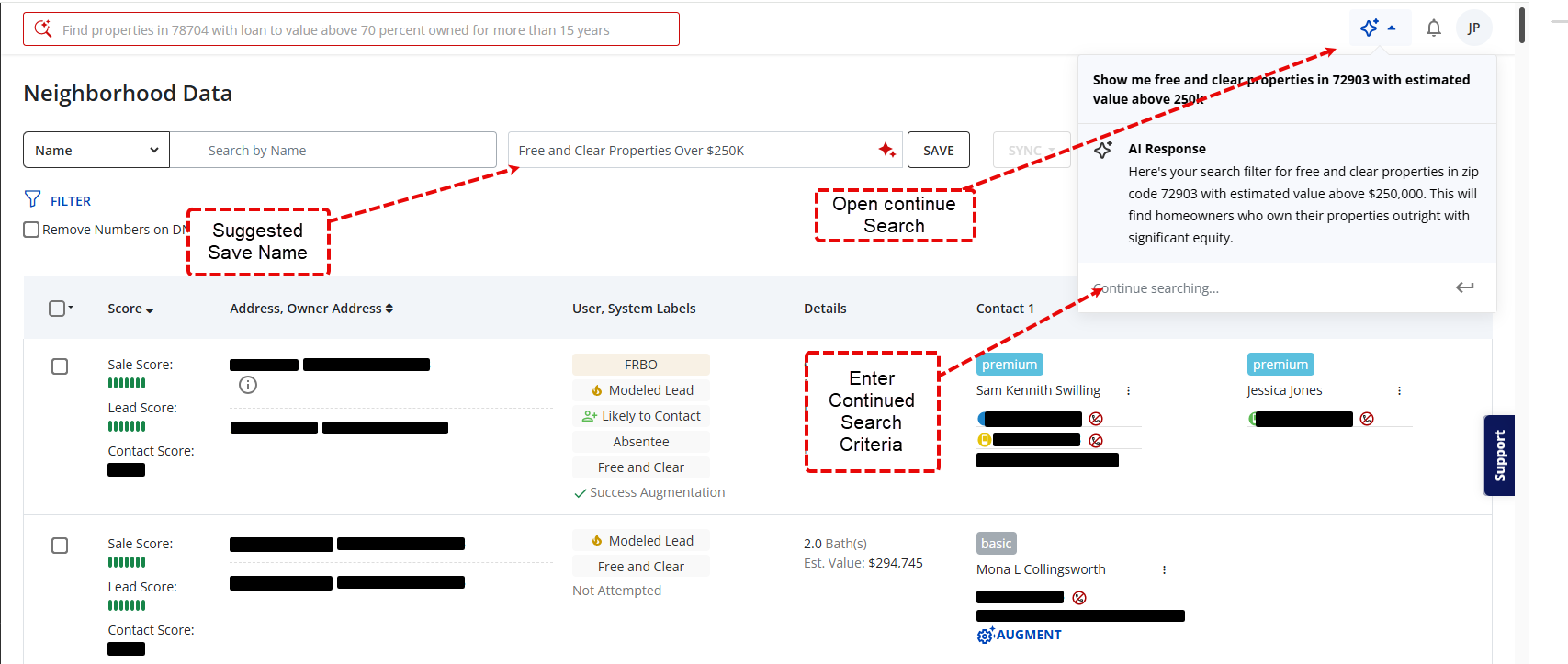
- • Your matching leads will be displayed in the Neighborhood Data grid with full details including Score, Address, Owner Address, Labels, Property Details, and Contact Information
- • The AI Response panel shows a summary of the search it performed — for example: "Properties in 78704 with loan to value above 80 percent"
- • Use the "Continue searching..." field in the AI panel to refine or add to your current search without starting over
- • You can also click the AI icon in the top-right corner at any time to reopen the AI panel
Working with Your Results
5 Save, Sync & Export
- • Click SAVE to save your AI-generated search as a named list for quick access later
- • Use the SYNC dropdown to push selected leads to your integrated CRM (e.g., Real Geeks, Follow Up Boss, etc.)
- • Use the EXPORT dropdown to download your results
- • Use the FILTER option to further narrow results, or check "Remove Numbers on DNC" to exclude Do Not Call numbers
Example Searches
Here are some examples of searches you can perform using AI Smart Search:
- • "Out of state owners in 78704 with high equity"
- • "Properties in 78704 with loan to value above 80 percent"
- • "Single family homes in Austin with absentee owners and low equity"
- • "Empty nesters in Austin with high equity and owner occupied"
- • "Show me all the absentee owners in 72903"
- • "Free and clear properties in 78704"
? Pro Tip: The more specific your search, the better the results. Include details like zip codes, property types, equity levels, and owner status to get the most targeted leads. You can also use the "Continue searching..." field to refine your results without starting a new search.